Analog Sensor Configuration
Analog Sensor Configuration is the OpenSprinklerPro UI area for defining sensor sources and using their values in irrigation automation. Open it from the footer menu with Analog Sensor Configuration.
Related pages: Sensor Automation and Monitors, FYTA Sensors, OpenSprinklerPro Extensions, API and platform addendum.
Sensor definitions
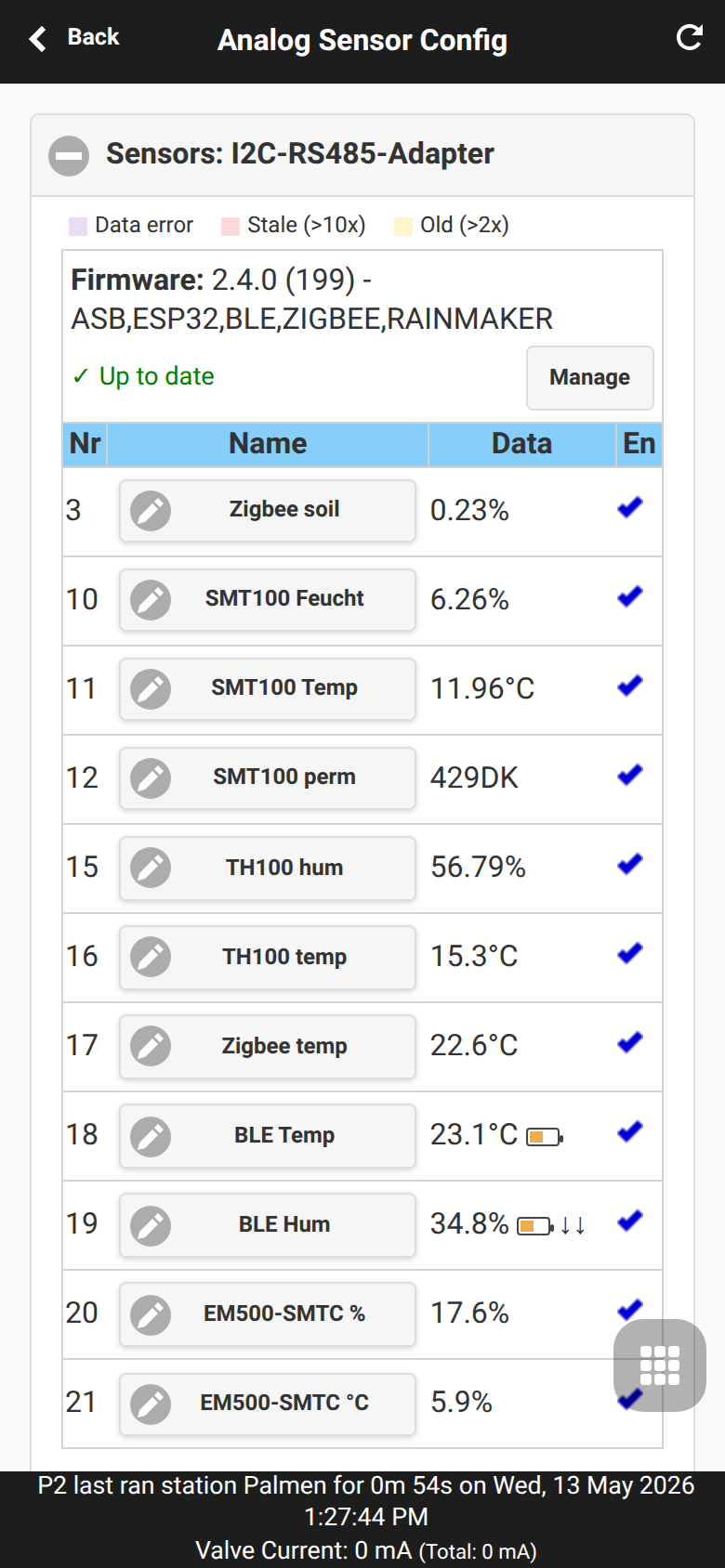
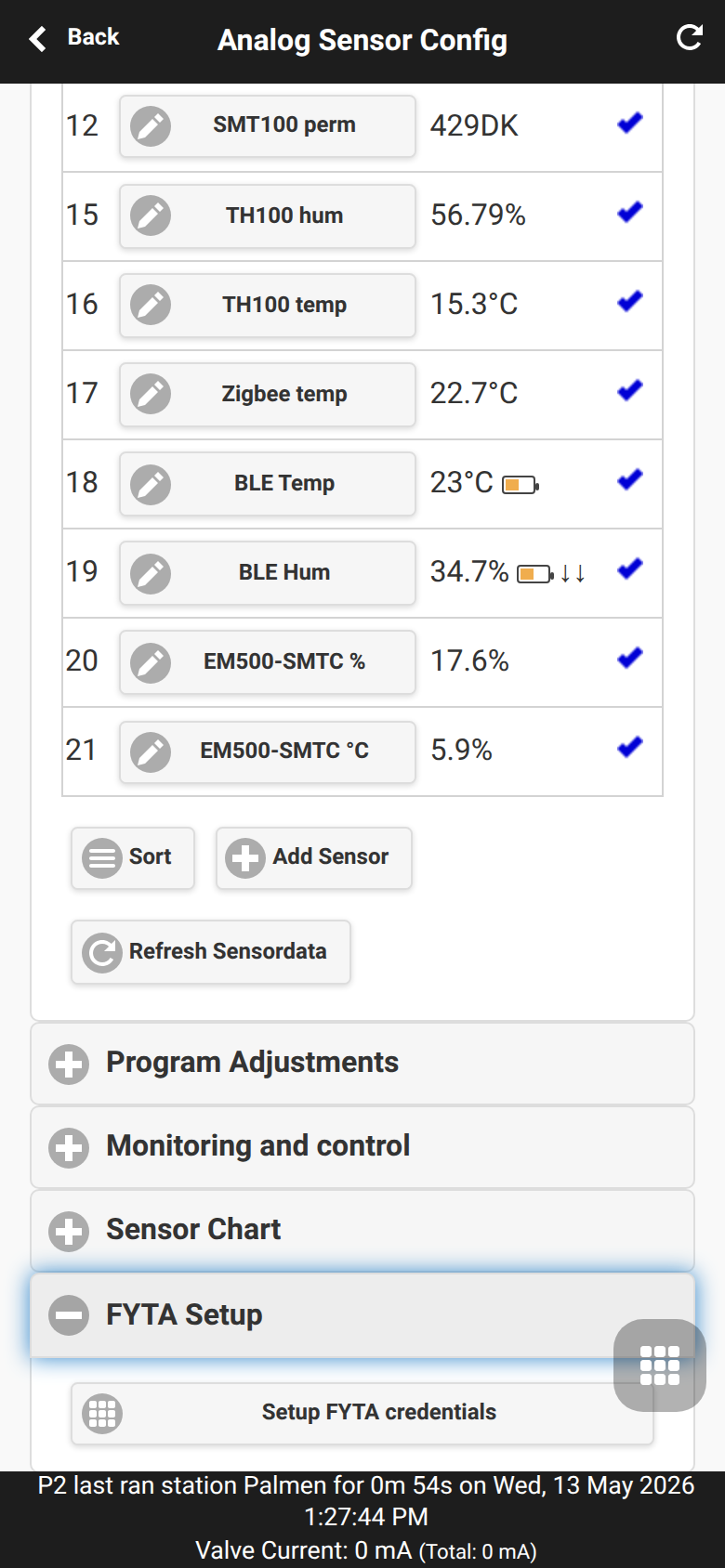
The first section defines the sensor list. Each row has a sensor number, name, current value and enable state. Add Sensor opens the editor for a new sensor; existing sensors are edited by tapping the sensor name.
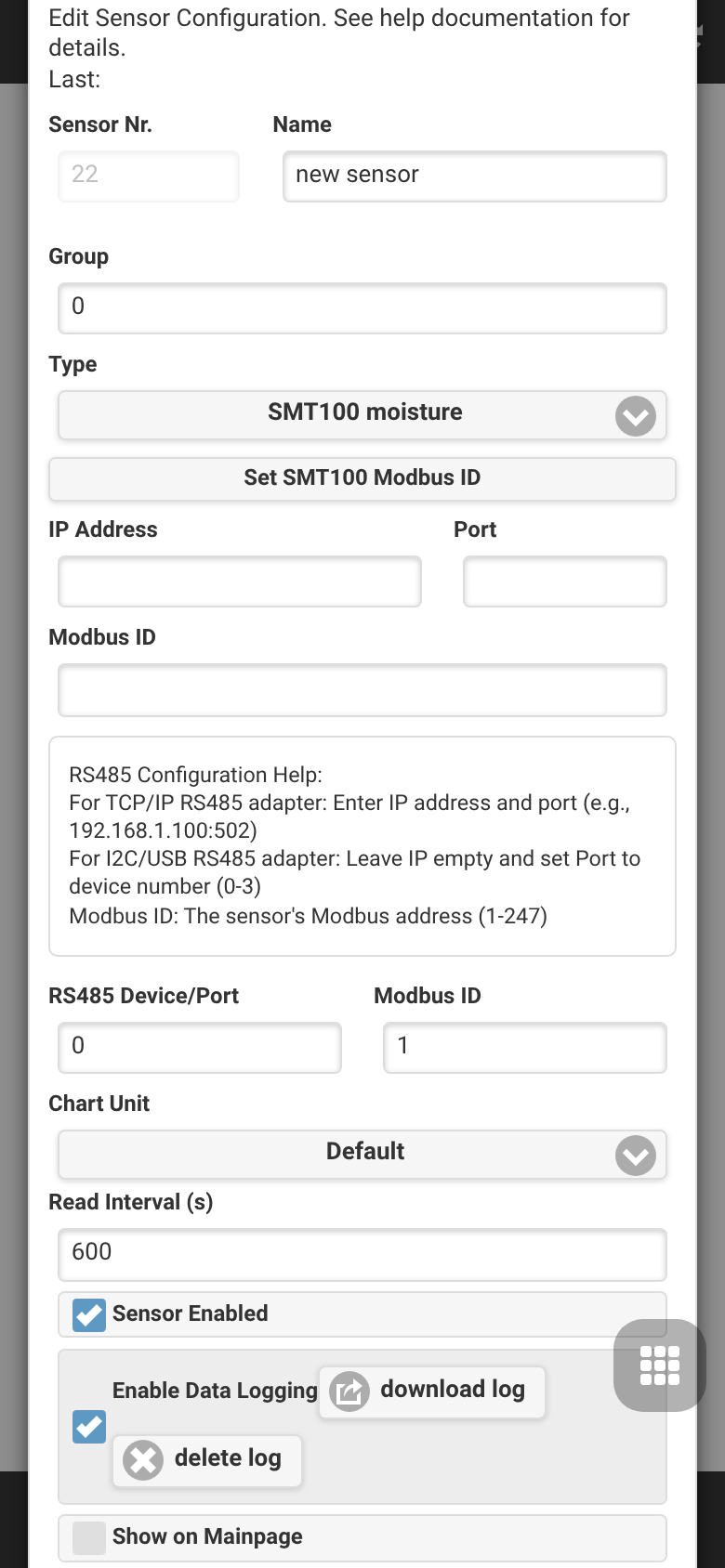
Editor fields
| Field | Meaning |
|---|---|
| Number, name and group | Identify the sensor in lists, charts, program adjustments and monitors. Groups are labels for sorting and filtering related sensors. |
| Type | Selects the driver or virtual source. The type determines which additional fields appear. |
| Unit and format | Defines how values are displayed, logged and compared. Choose a unit that matches the physical value or upstream payload. |
| Interval, log and show | The interval controls how often the value is refreshed. Log enables chart/history storage; show controls visibility in UI overviews. |
| Bus, address and channel | Used by RS485/Modbus, ASB and OSPi analog sources to select the hardware bus, device address or analog channel. |
| User-defined scaling | For user-defined analog sensors, enter the conversion from raw voltage/ADC value to the final engineering value. |
| MQTT topic and filter | MQTT sensors subscribe to a topic and optionally extract a value from JSON or a text payload. |
| Source sensor list | Group sensors calculate a new value from the selected source sensors. All sources should use compatible units. |
RS485 / Modbus
Use these types for wired sensors on an RS485 bus or a generic Modbus RTU device. Configure the bus, slave address, register/channel and read interval according to the connected device.
| Sensor type | Explanation |
|---|---|
| Truebner SMT100 RS485 Modbus, moisture mode | Reads the soil moisture value from a Truebner SMT100 over RS485/Modbus. Use it for irrigation decisions based on volumetric water content. |
| Truebner SMT100 RS485 Modbus, temperature mode | Reads the SMT100 temperature channel. Use it when soil temperature should be logged or used in monitor rules. |
| Truebner SMT100 RS485 Modbus, permittivity mode | Reads the SMT100 dielectric permittivity channel for diagnostics or advanced soil models. |
| Truebner TH100 RS485 Modbus, humidity mode | Reads relative humidity from a Truebner TH100. Useful for greenhouse or ambient humidity monitoring. |
| Truebner TH100 RS485 Modbus, temperature mode | Reads the TH100 temperature value for ambient or installation-area temperature monitoring. |
| RS485/MODBUS RTU generic sensor | Reads a configurable Modbus RTU value from third-party equipment. Set address, register, data format and scaling to match the device manual. |
Analog Sensor Board (ASB)
ASB types read voltage inputs from the OpenSprinkler analog sensor board and convert them to a physical value. Select the correct channel and only use sensor modes matching the wiring and supply voltage.
| Sensor type | Explanation |
|---|---|
| ASB - voltage mode 0..5V | Reports the measured ASB input voltage directly in the 0 to 5 V range. Use it for calibration or external sensors with their own conversion. |
| ASB - 0..3.3V to 0..100% | Converts an input voltage between 0 and 3.3 V to a percentage. Useful for generic analog level or moisture signals. |
| ASB - SMT50 moisture mode | Converts the analog output of a Truebner SMT50 to soil moisture. |
| ASB - SMT50 temperature mode | Converts the SMT50 temperature output to a temperature value. |
| ASB - SMT100-analog moisture mode | Converts the analog moisture output of a Truebner SMT100. |
| ASB - SMT100-analog temperature mode | Converts the analog temperature output of a Truebner SMT100. |
| ASB - Vegetronix VH400 | Converts the Vegetronix VH400 output to soil moisture. |
| ASB - Vegetronix THERM200 | Converts the Vegetronix THERM200 output to temperature. |
| ASB - Vegetronix AquaPlumb | Converts the Vegetronix AquaPlumb output for water presence or level-style measurements. |
| ASB - user defined sensor | Uses custom scaling for sensors not covered by a built-in conversion. Define the unit, display format and conversion carefully before using it for automation. |
OSPi analog inputs
These types are for analog inputs available on OSPi/Raspberry Pi based installations. They are not used on ESP-only controllers without the corresponding analog input hardware.
| Sensor type | Explanation |
|---|---|
| OSPi analog input - voltage mode 0..3.3V | Reports the measured analog input voltage directly in the 0 to 3.3 V range. |
| OSPi analog input - 0..3.3V to 0..100% | Converts a 0 to 3.3 V input to a percentage for generic analog sensors. |
| OSPi analog input - SMT50 moisture mode | Converts an SMT50 moisture output connected to an OSPi analog input. |
| OSPi analog input - SMT50 temperature mode | Converts an SMT50 temperature output connected to an OSPi analog input. |
| Internal Raspberry Pi temperature | Reads the Raspberry Pi CPU temperature. Use it as a diagnostic sensor for OSPi enclosure or thermal checks. |
| Internal ESP32 temperature | Reads the ESP32 internal temperature sensor where supported. Treat it as controller diagnostics rather than calibrated ambient temperature. |
Wireless, cloud and remote sources
These types receive values from radio integrations, cloud services, MQTT or another OpenSprinkler controller. Confirm platform availability before selecting them: Zigbee and BLE require compatible ESP32 builds; FYTA requires cloud credentials; MQTT requires a broker configuration.
| Sensor type | Explanation |
|---|---|
| Zigbee sensor | Maps a value reported by a paired Zigbee device, such as temperature, humidity or soil moisture. Select the device and exposed measurement. |
| BLE sensor | Reads a supported Bluetooth Low Energy sensor. Use scan interval and device selection to balance freshness and radio load. |
| FYTA moisture sensor | Imports soil moisture from a FYTA plant sensor after FYTA setup. |
| FYTA temperature sensor | Imports temperature from a FYTA plant sensor after FYTA setup. |
| Gardena moisture sensor | Imports soil moisture from a Gardena smart sensor via Gardena cloud API. |
| Gardena temperature sensor | Imports temperature from a Gardena smart sensor via Gardena cloud API. |
| MQTT subscription | Subscribes to an MQTT topic and parses the incoming value. Configure topic, optional JSON/filter expression, unit and timeout behavior. |
| Remote JSON sensor | Queries any external HTTP/HTTPS JSON endpoint and extracts the value using a path search. |
| Remote OpenSprinkler sensor | Reads a sensor from another OpenSprinkler controller. Configure the remote URL/controller and source sensor number. |
Weather data
Weather sensors expose values already known to the controller from the configured weather service. Use the unit-specific type that matches your automation rules and charts.
| Sensor type | Explanation |
|---|---|
| Weather data - temperature (°F) | Weather-service temperature in degrees Fahrenheit. |
| Weather data - temperature (°C) | Weather-service temperature in degrees Celsius. |
| Weather data - humidity (%) | Weather-service relative humidity in percent. |
| Weather data - precip (inch) | Weather-service precipitation in inches. |
| Weather data - precip (mm) | Weather-service precipitation in millimetres. |
| Weather data - wind (mph) | Weather-service wind speed in miles per hour. |
| Weather data - wind (kmh) | Weather-service wind speed in kilometres per hour. |
| Weather data - ETO | Reference evapotranspiration value used for irrigation context. |
| Weather data - radiation | Solar radiation value from the weather source, when available. |
Group sensors
Group sensors create an aggregate value from other sensors. Pick source sensors with comparable units and logging intervals so the result is meaningful.
| Sensor type | Explanation |
|---|---|
| Sensor group with min value | Reports the lowest current value among the selected source sensors. |
| Sensor group with max value | Reports the highest current value among the selected source sensors. |
| Sensor group with avg value | Reports the arithmetic average of the selected source sensors. |
| Sensor group with sum value | Reports the sum of the selected source sensors, for example combined rainfall or flow-like totals. |
Diagnostics
Diagnostic sensors make controller health data available in the same charting and monitor system as environmental sensors.
| Sensor type | Explanation |
|---|---|
| Free Memory | Reports currently free RAM. Use monitors to detect memory pressure or leaks during long-term tests. |
| Free Storage | Reports remaining storage space where supported. Use it to warn before logs or configuration data fill the filesystem. |
Program adjustments
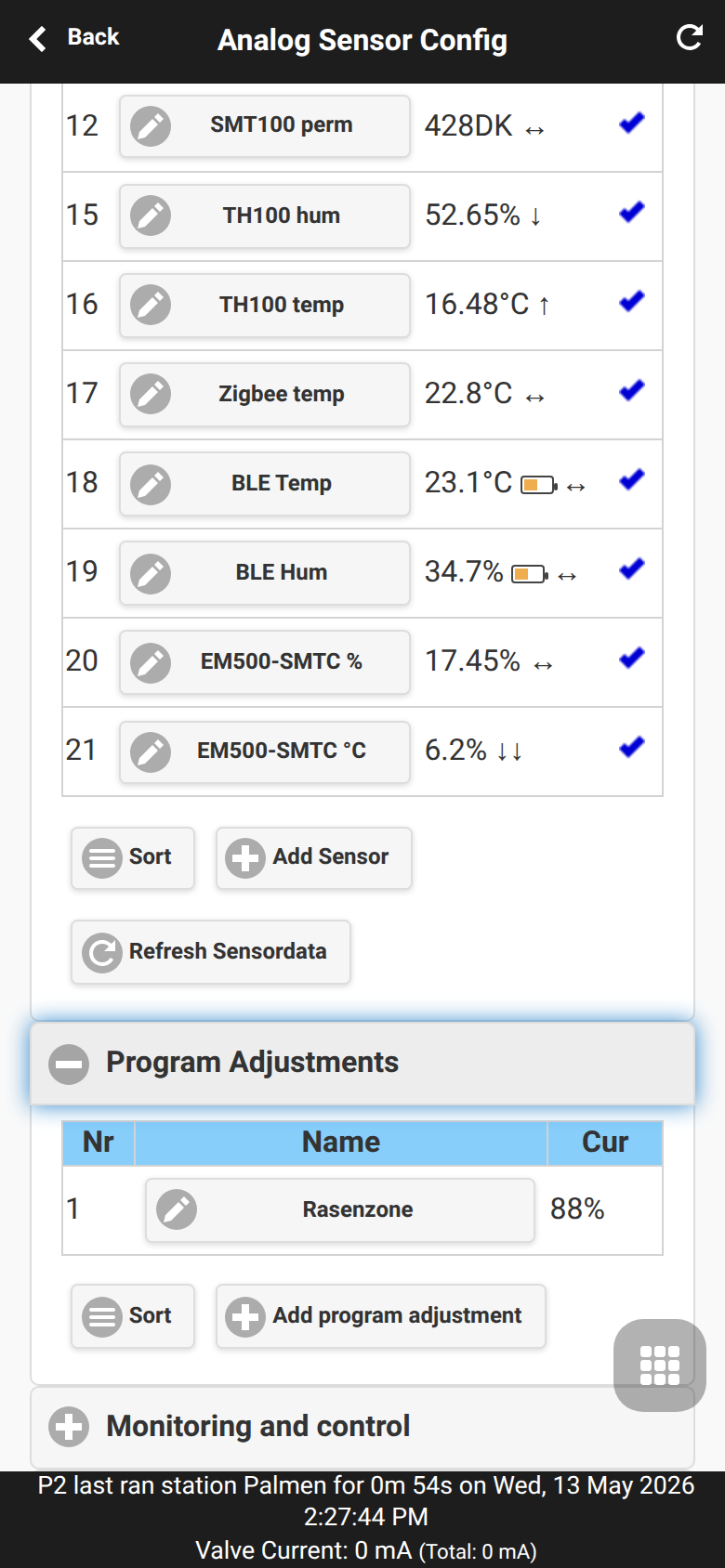
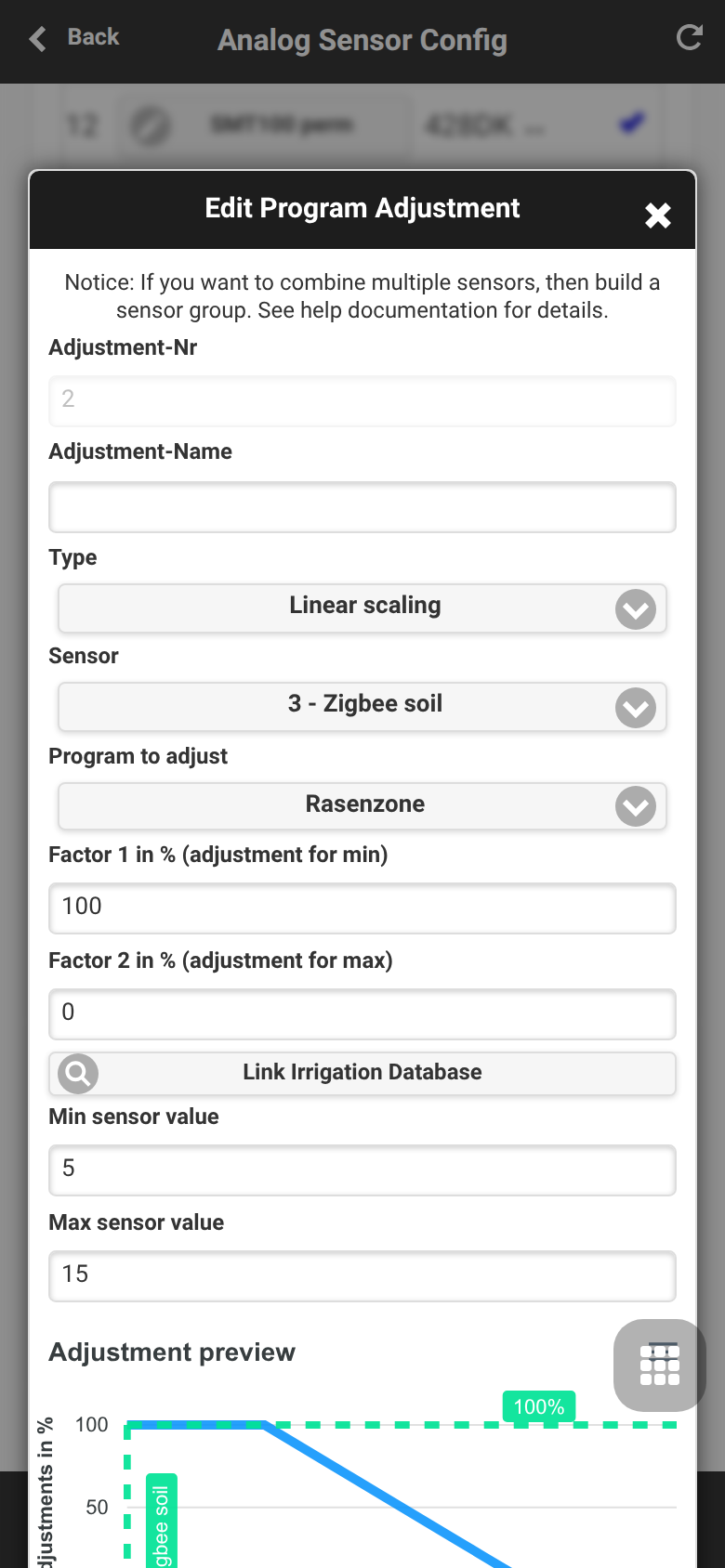
Program Adjustments let a sensor scale the watering duration of a program. Typical examples are reducing watering when soil moisture is high or increasing watering when temperature is high.
Adjustment model
Each adjustment connects one sensor to one irrigation program and calculates a percentage modifier. Start with logging enabled on the sensor, then verify the value range before applying it to real watering.
Adjustment types
| Type | Use |
|---|---|
LINEAR |
Scales continuously between configured low and high points. |
DIGITAL_MIN |
Triggers a binary reduction or stop when the sensor is below a threshold. |
DIGITAL_MAX |
Triggers a binary reduction or stop when the sensor is above a threshold. |
DIGITAL_MINMAX |
Applies binary behavior inside or outside a configured range. |
The current implementation details and formulas are documented in Sensor Automation and Monitors. MCP/API automation can use configure_adjustment; REST details are listed in the API and platform addendum.
Monitors and local alerts
Monitoring and Control creates threshold and logic rules from sensors. Monitors can produce local warnings, feed notification events and combine conditions such as “soil is dry” and “current time is morning”.
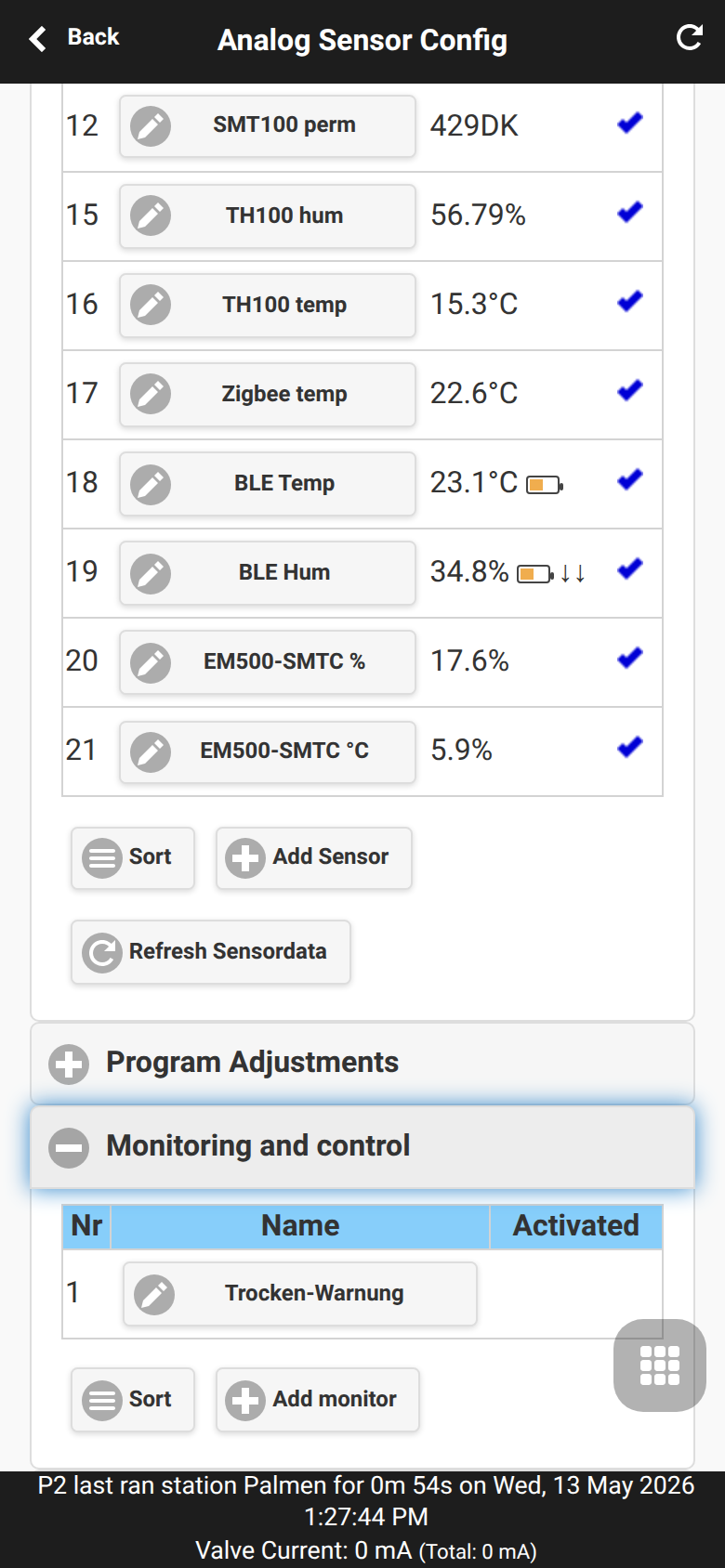
Editor fields (all monitor types)
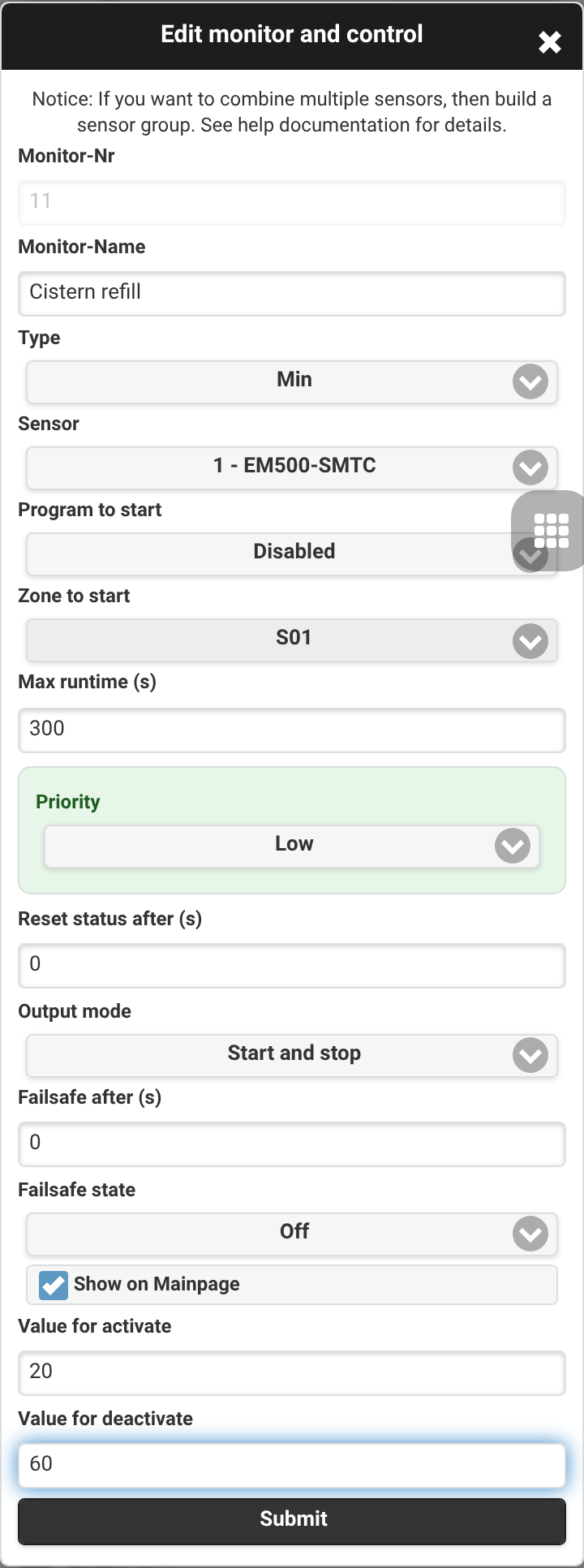
Every monitor shares the following fields, independent of its type. Selecting the Type reveals the type-specific fields documented further below.
| Field | Meaning |
|---|---|
| Monitor-Nr / Monitor-Name | Unique number and a descriptive name shown in lists and alerts. |
| Type | Selects the rule type. Changing it swaps the type-specific fields. |
| Program to start / Zone to start | Action taken while the monitor is active: start a program or a single zone. Leave on Disabled for a pure alert or logic monitor. |
| Max runtime (s) | Maximum run time of the started zone per activation. |
| Priority | Severity of the generated notification (Low / Medium / High). |
| Reset status after (s) | If greater than 0, the active state is reset automatically after this many seconds (periodic/pulse behaviour). 0 keeps the state until the condition itself clears. |
| Output mode | Start and stop controls the output in both directions. Only switch off lets the monitor only turn the zone/program off (for example an emergency stop) and never start it. |
| Failsafe after (s) | If the referenced sensor delivers no valid data for this many seconds, the failsafe state is applied. 0 disables the failsafe and the last state is kept. |
| Failsafe state | Output state (On/Off) that is forced once the sensor data is considered stale. |
| Show on Mainpage | Shows the monitor and its current state on the app main page. |
Monitor types
Minimum (MIN)
Activates when a sensor value drops to or below a threshold — for example to refill a cistern when the level is low. Value for activate and Value for deactivate form a hysteresis band so the output does not toggle repeatedly around a single value.
Maximum (MAX)
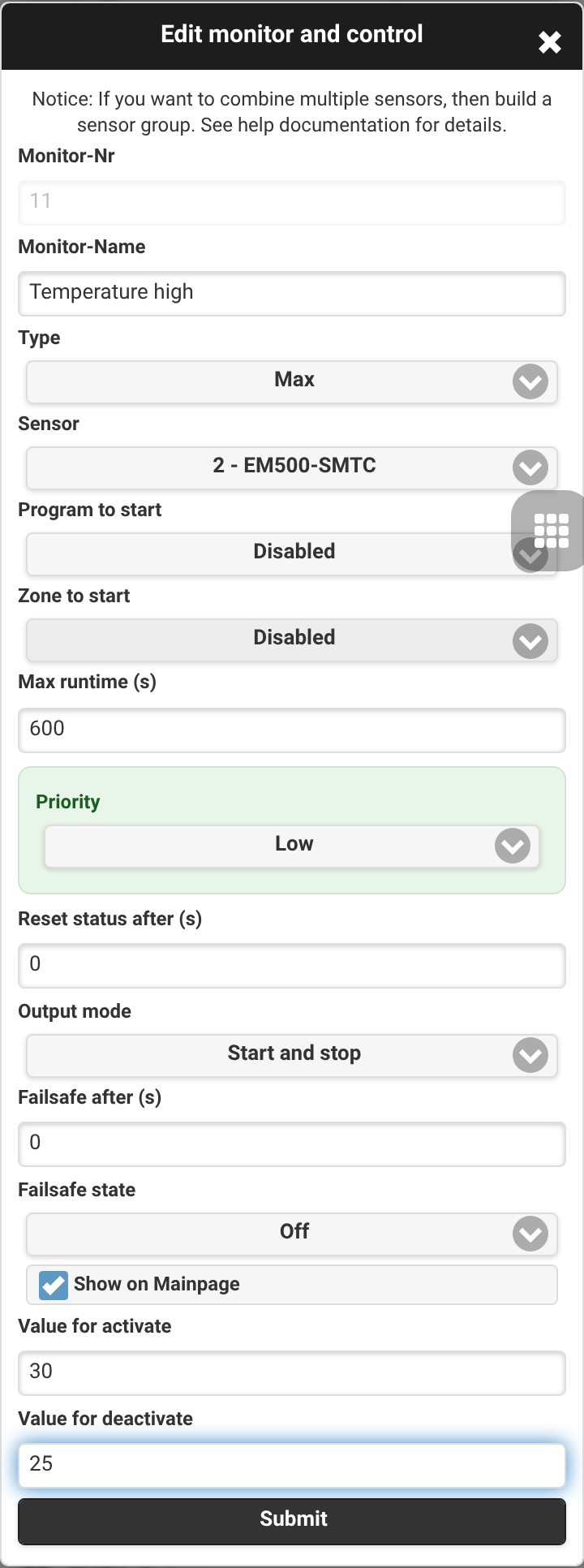
Activates when a sensor value rises to or above a threshold — for example a high-temperature or overflow alarm. It uses the same hysteresis band (Value for activate / Value for deactivate) as the MIN type.
Digital sensor 1/2 (SN 1/2)
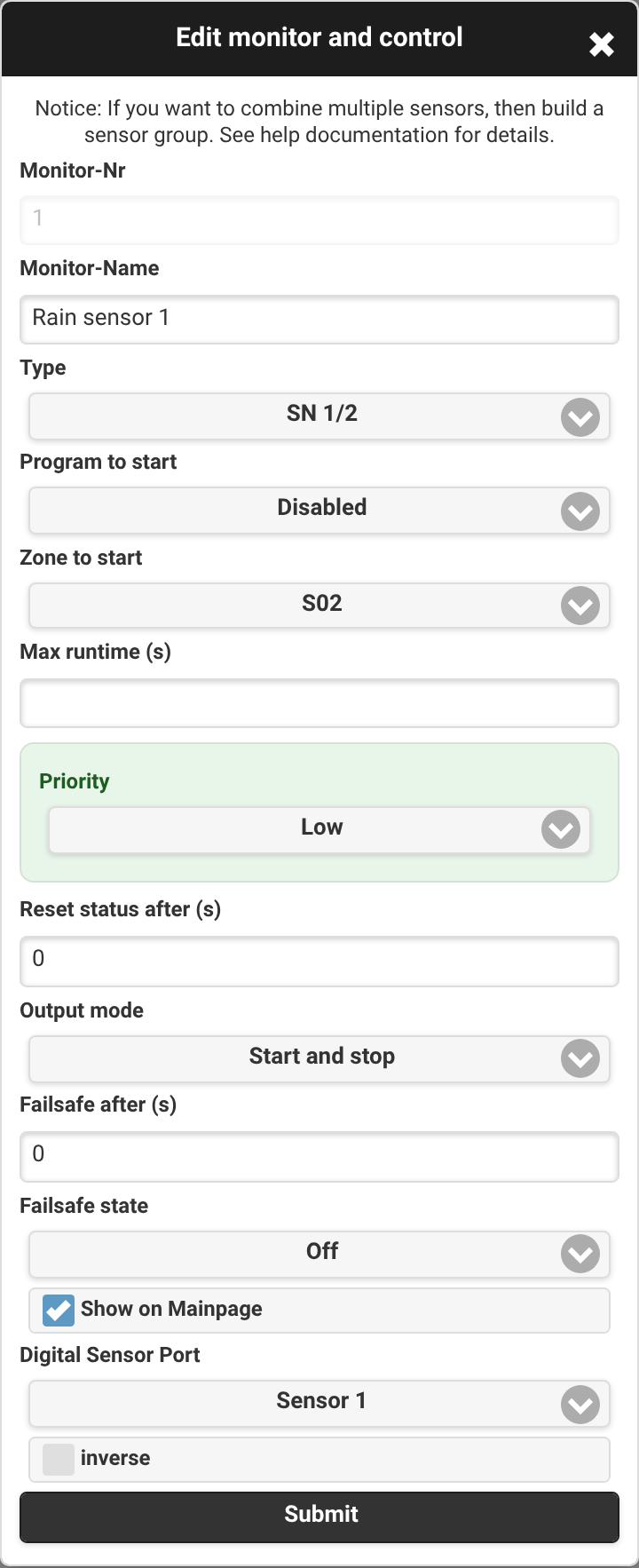
Mirrors the state of the built-in digital rain/soil sensor input (Sensor 1 or Sensor 2). Enable inverse to react to the opposite state.
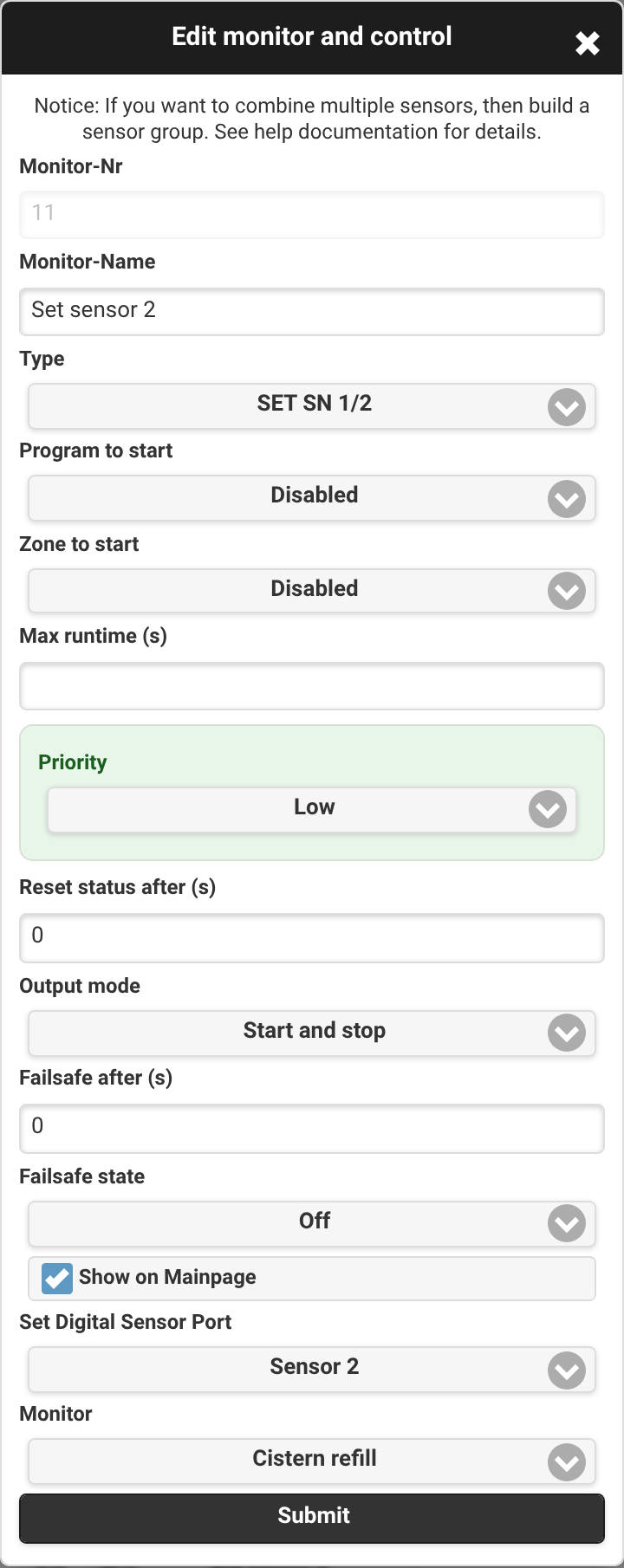
Set digital sensor (SET SN 1/2)
Drives the virtual state of digital Sensor 1 or Sensor 2 from another monitor. This lets a computed condition act like a physical rain/soil sensor for the scheduler.
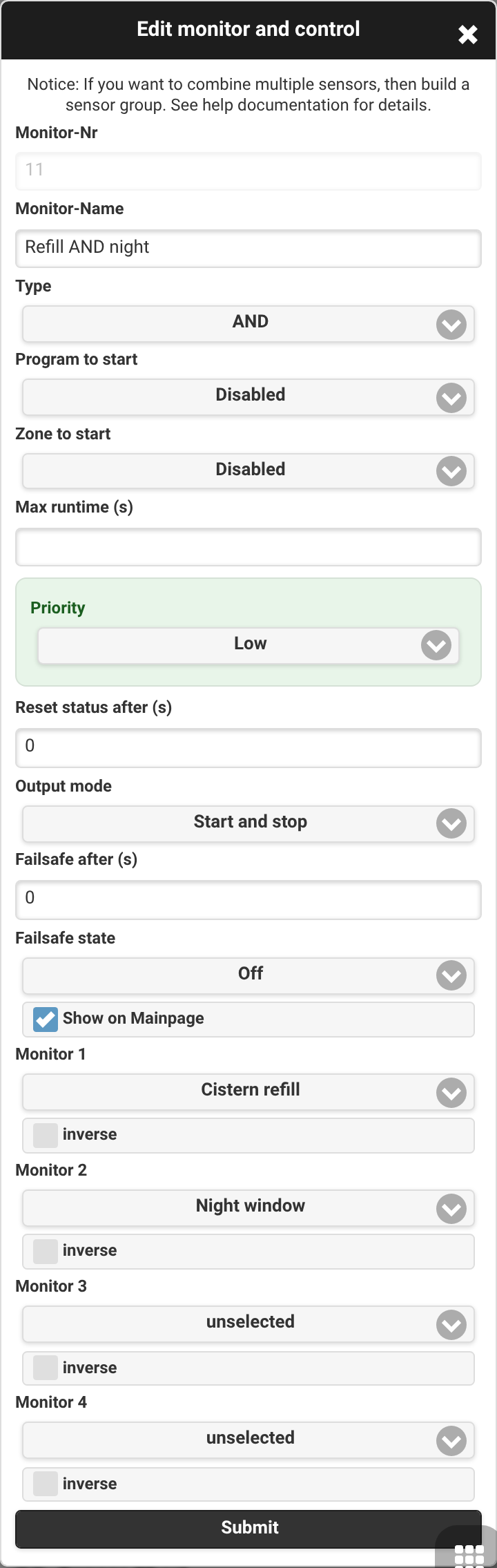
AND
Active only when all selected source monitors are active. Each of the up to four inputs can be individually inverted with its inverse checkbox.
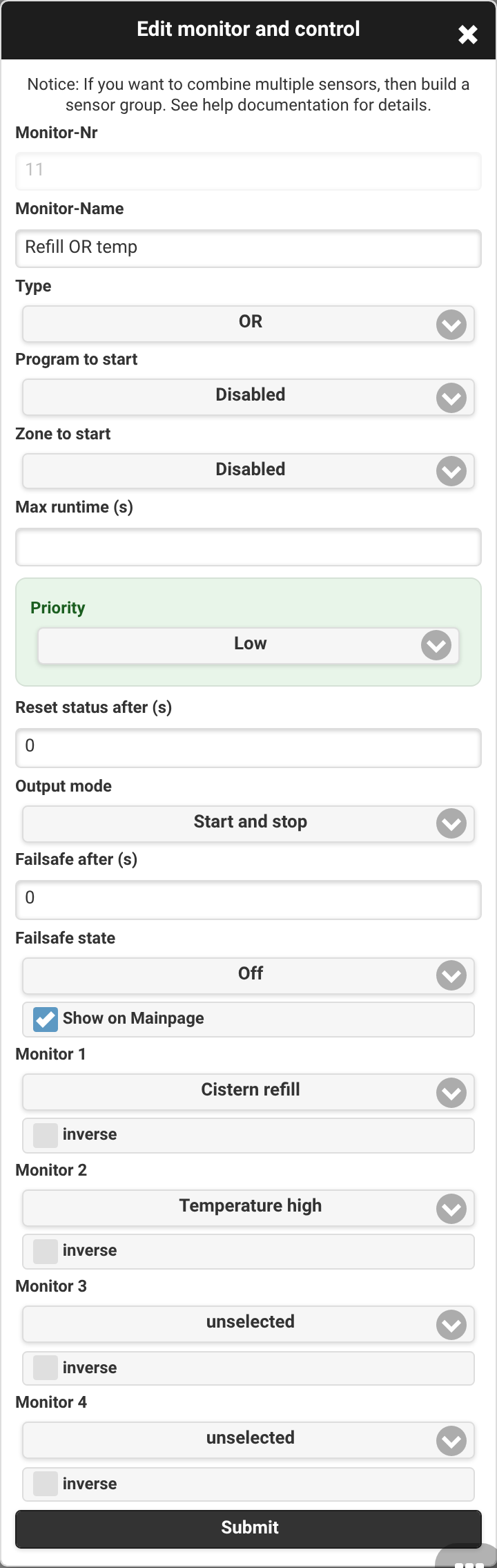
OR
Active when any of the selected source monitors is active. Inputs can be inverted individually.
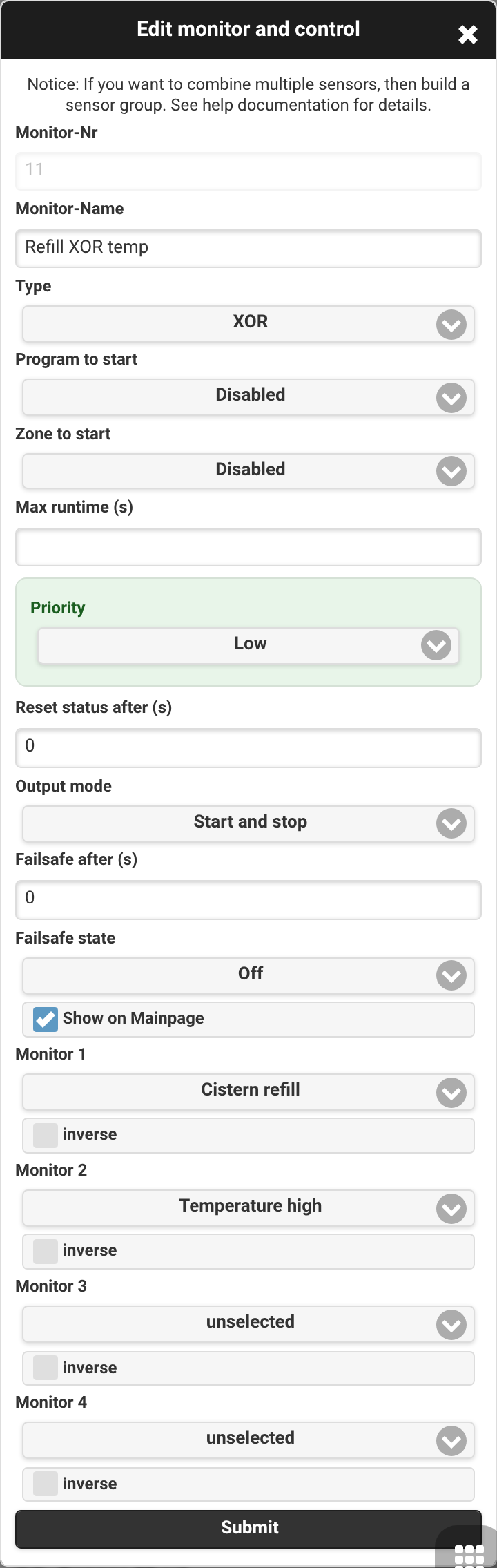
XOR
Active when an odd number of the selected inputs are active (exclusive or). Useful to detect a mismatch between two conditions.
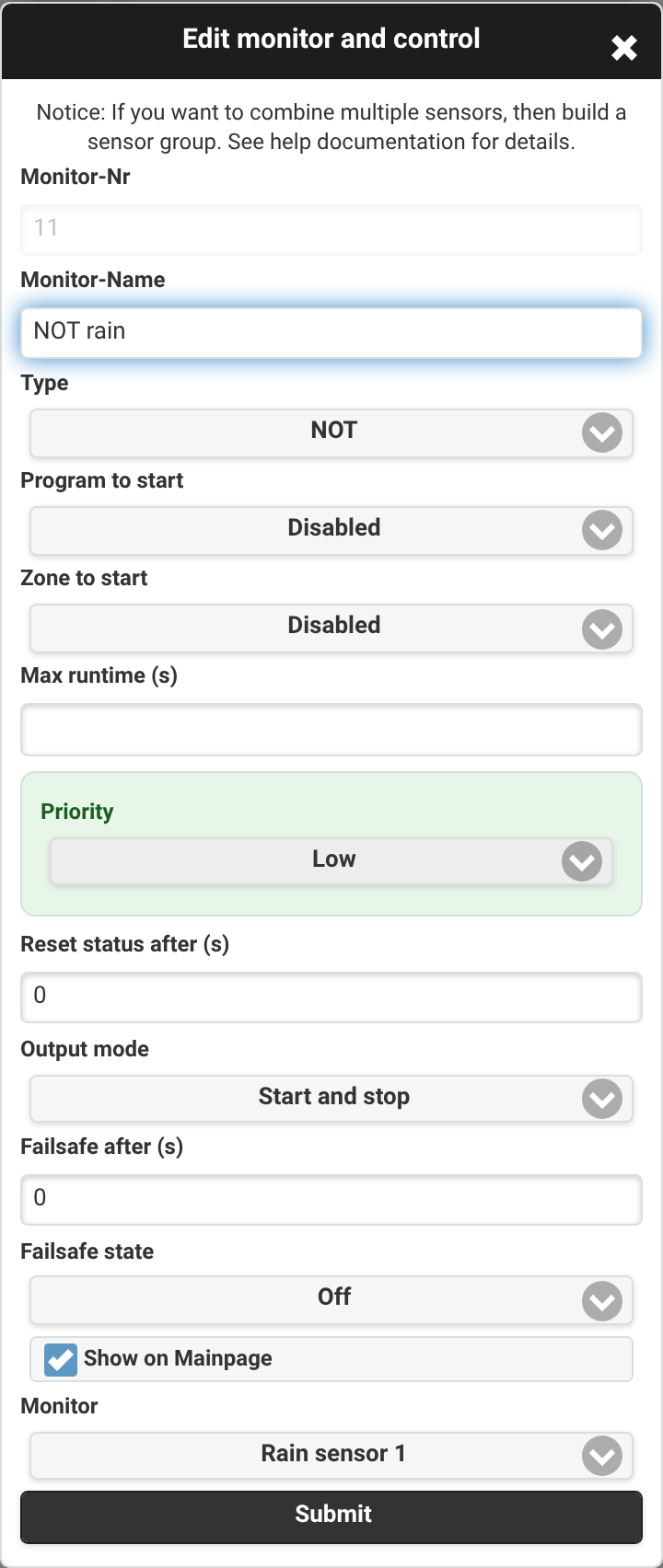
NOT
Inverts the state of a single source monitor.
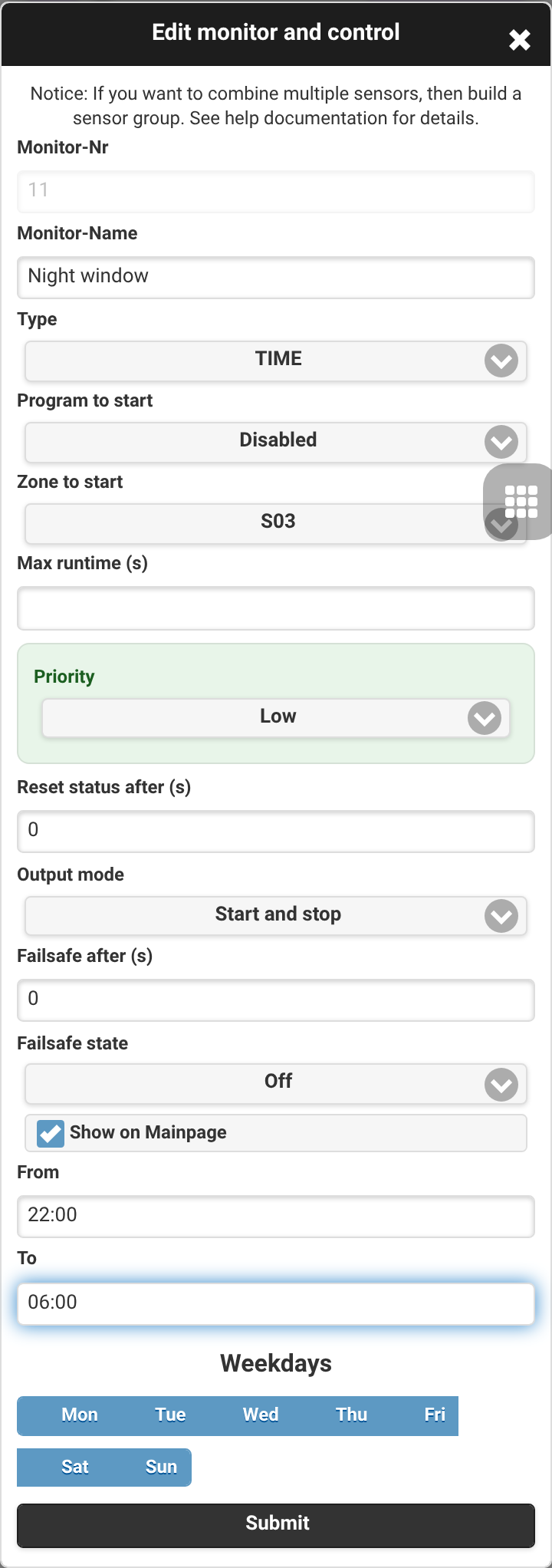
Time window (TIME)
Active during a daily time window on the selected weekdays. Set From and To (a window that crosses midnight is supported) and tick the weekdays.
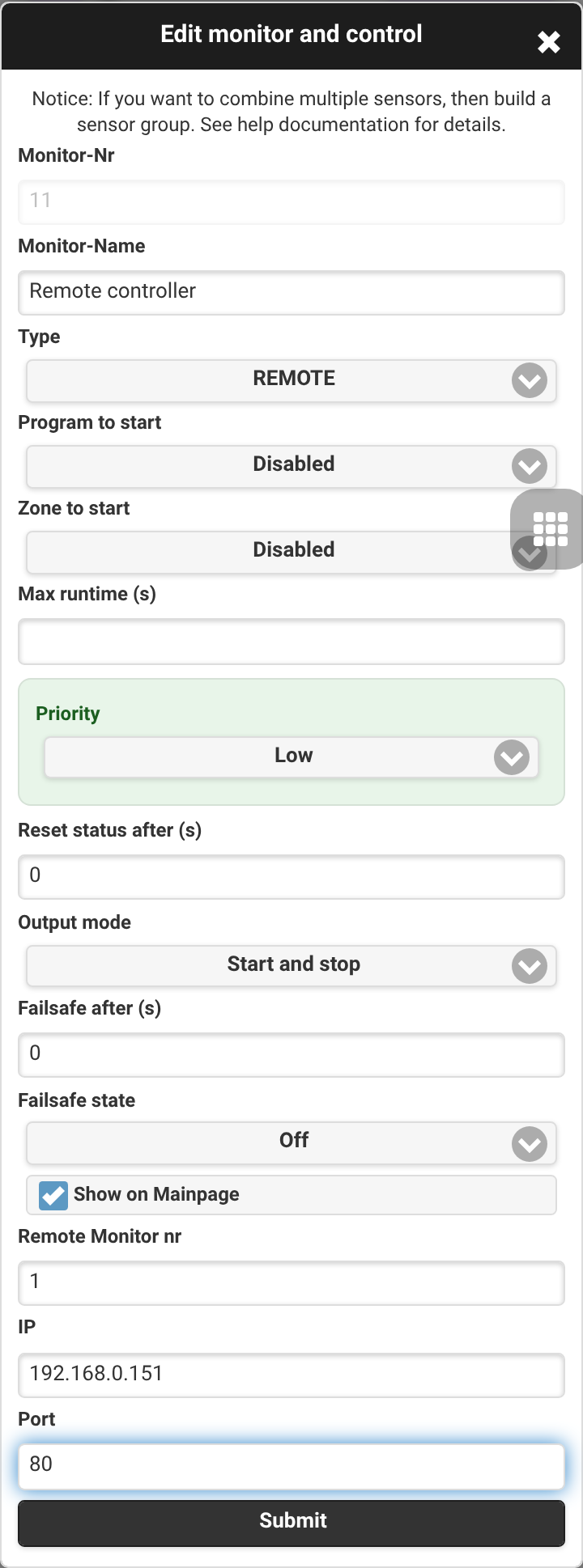
Remote (REMOTE)
Mirrors the active state of a monitor on another OpenSprinkler controller. Enter the Remote Monitor nr, the controller IP and Port.
See Sensor Automation and Monitors for the functional model.
Sensor chart and data
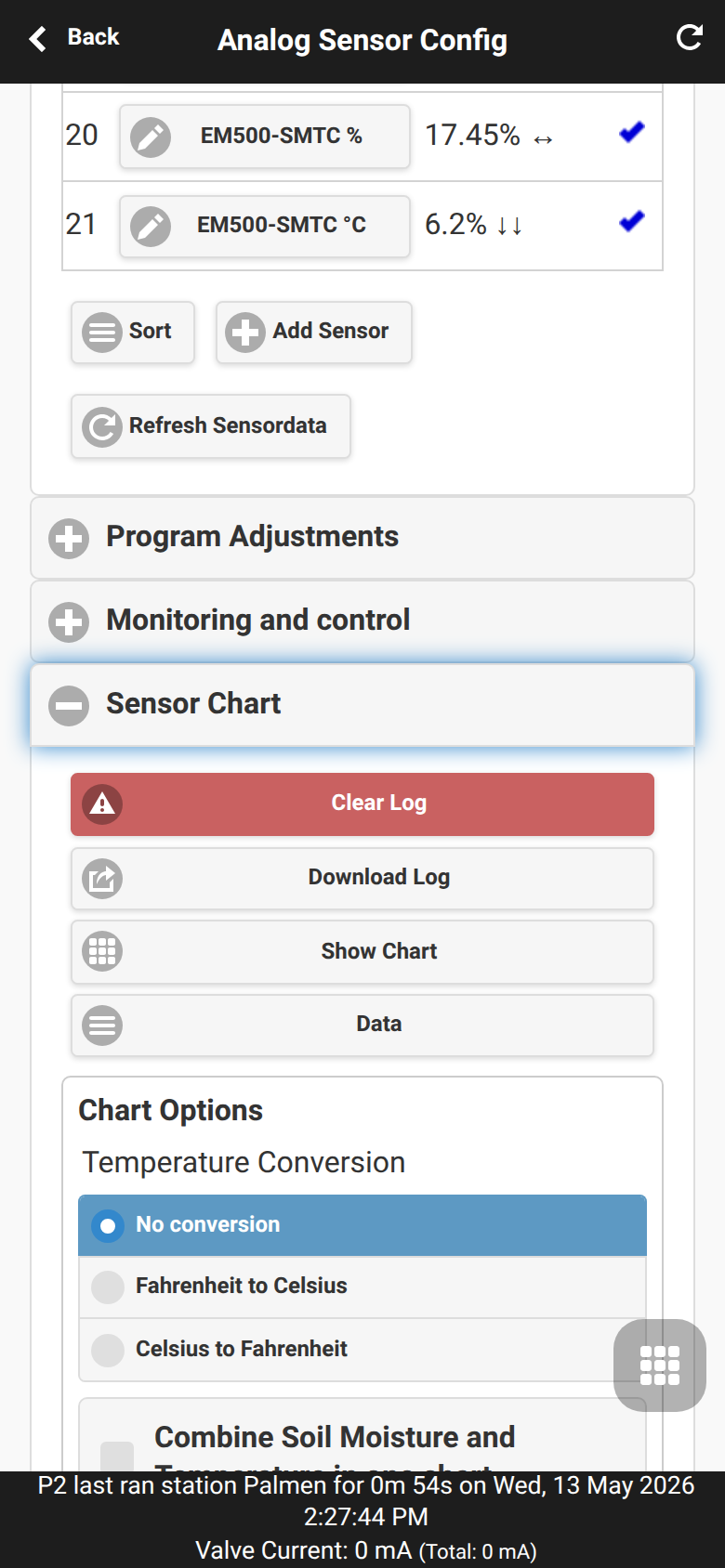
Sensor Chart displays logged sensor values. Use it to check whether readings are plausible before using them for program adjustments or monitors. The UI can also download logs or open the logged data table.
Reading charts
Check for missing samples, unexpected spikes and unit mismatches. Compare related sensors in the same group before using them for automatic decisions.
Downloading data
Logged data can be downloaded or inspected in table form. This is useful for calibration, troubleshooting and sharing sensor traces.
FYTA setup
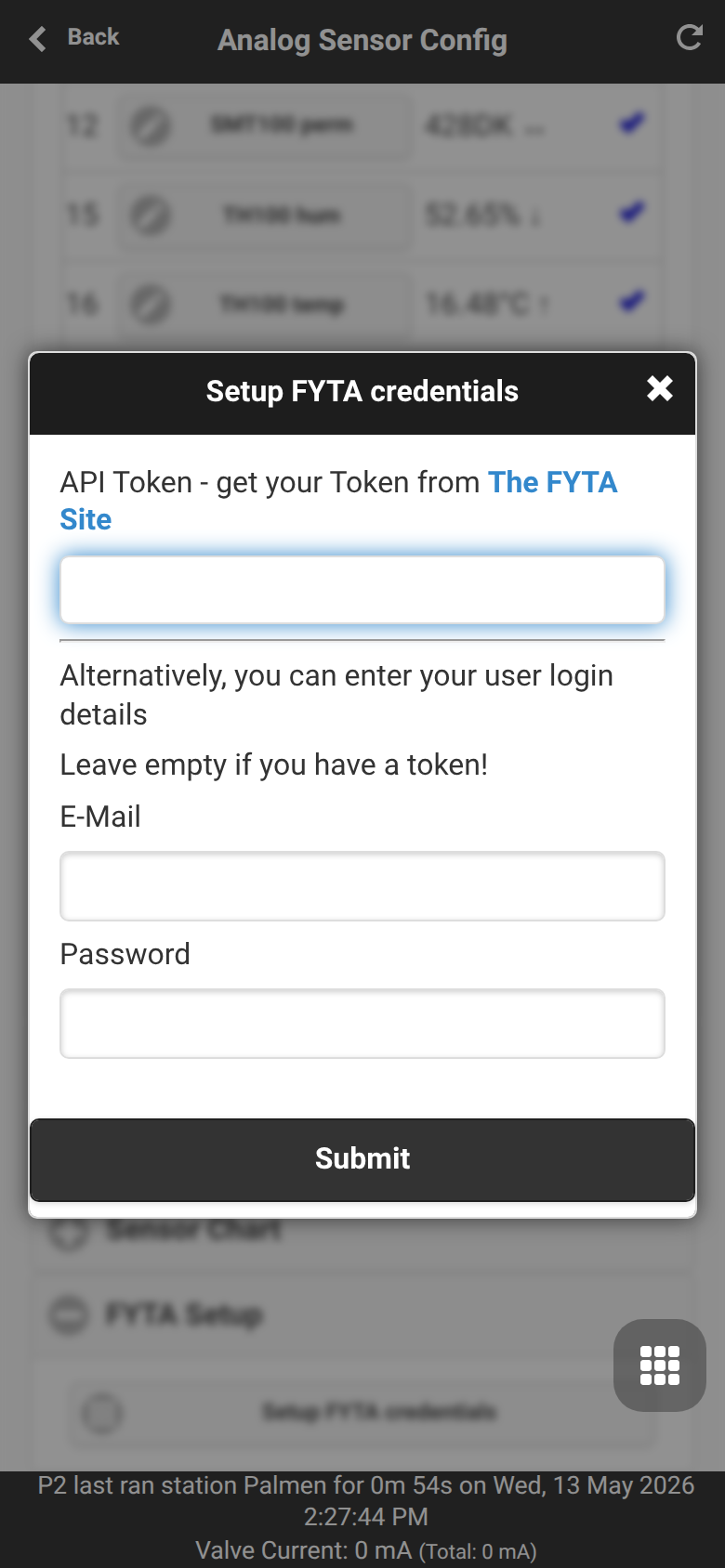
FYTA Setup stores a FYTA API token or login credentials and lets FYTA plant sensors be mapped into OpenSprinkler sensors. See FYTA Sensors for setup and troubleshooting details.
Credentials
Enter the FYTA API token or login data required by your firmware version. Keep credentials private and update them if FYTA access changes.
Mapping plants
After authentication, map FYTA plant moisture and temperature values to OpenSprinkler sensor entries so they can be charted, monitored and used in adjustments.
Gardena setup
The Gardena Setup enables connection to the official Gardena Cloud API. This allows Gardena smart soil moisture and temperature sensors to be imported directly and integrated into your watering logic.
Gardena OAuth Assistant
- Register on the Gardena Developer Portal if needed and create an app to obtain a Client ID and Client Secret.
- In the OpenSprinkler menu, open Options -> Integrations or open the Gardena OAuth Assistant directly within the analog sensor options.
- Enter your credentials. The assistant will guide you through the OAuth 2.0 login and request the Refresh Token automatically.
- After a successful login, connected Gardena devices will be automatically discovered.
Mapping Gardena Sensors
In the sensor definitions, select the type Gardena moisture sensor or Gardena temperature sensor. In the editor, you can then choose the desired device and its specific data metric.
Remote JSON sensor setup
The Remote JSON sensor is an extremely flexible type designed to query arbitrary REST APIs returning data in JSON format. It parses responses on-the-fly stream-wise with low memory overhead.
Editor Fields
- URL: The full HTTP or HTTPS address of the API (e.g.,
http://api.weather.com/v1/sensor). Max 200 characters. You can supply custom query-string parameters directly within the URL (e.g.,http://192.168.1.1/api?pw=123&js=1to pass keys, passwords, or IDs). - JSON Search Path (Filter): The path to the desired numeric value in the JSON document. Neseted objects are separated by a vertical bar (
|) (e.g.,main|temporroot|sensor_1|humidity).
Technical Specifications
- Request Method: Standard HTTP-GET is used exclusively.
- Polling Type (Single Data Poll): A single current data value is queried and parsed on each interval loop (historical log files or dataset arrays are not handled by the controller).
- Timeout: The network lockup and stream read timeout is set to exactly 3000 milliseconds. Endpoints must respond within 3 seconds, or the poll fails.
- Synchronization & Best-Practice Architecture: To prevent timeouts and exceedances of external API limits (e.g., on OpenMeteo), it is best practice to run a script (via cronjob) on a local server or gateway (like an OpenWrt router). This script processes forecasts, performs anti-aliasing filter smoothing, and outputs a static JSON file on the gateway. OpenSprinkler then polls this local static file in a few milliseconds.
Backup and restore
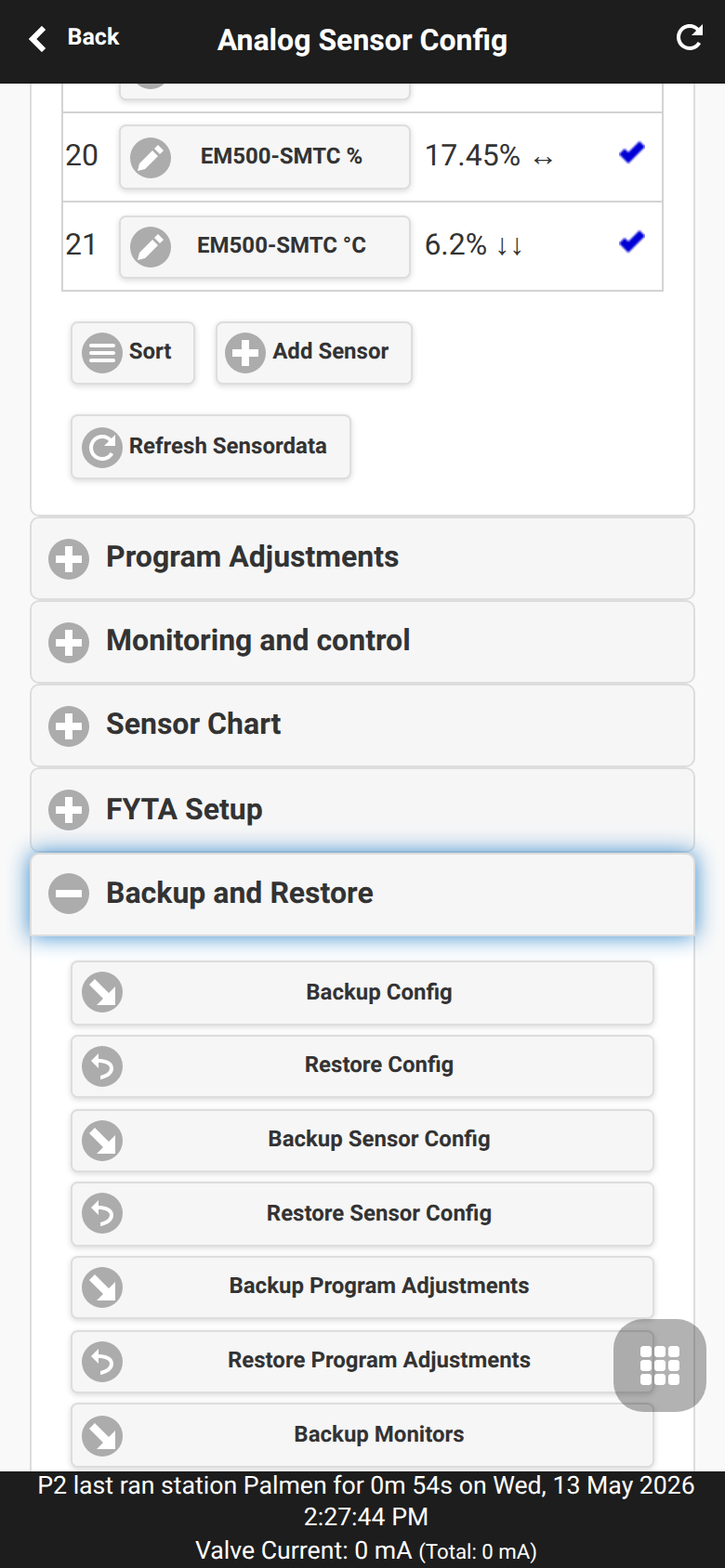
Backup and Restore exports or restores sensor configuration, program adjustments and monitors separately from the general controller backup. Use this before large sensor changes or firmware tests.
What is included
Backups include sensor definitions, adjustment rules and monitor rules. They do not replace a full controller backup for unrelated settings.
Safe restore workflow
Export a backup before editing many sensors, restore only files from a trusted source and verify sensor values after the restore before re-enabling automatic adjustments.